Init React Three Fiber
Imagine creating 3D things for the web with the declarative nature of React. Sounds great, right? Now, you don’t have to read the first word again. Let me introduce you to React Three Fiber, which lets you do exactly that.
What is React Three Fiber?
React Three Fiber aka R3F is a React renderer for Three.js. It takes JSX and renders it into Three.js, letting you describe 3D scenes using declarative React components instead of imperative Three.js code.
To start building in 3D, you first need to understand a few fundamental concepts.
Core Concepts
-
Scene is a container holding all things like objects, cameras, and lights. Think of it like a movie set containing actors, cameras, and lights.
-
Camera represents the viewpoint from which the scene is rendered. It defines what the viewer sees.
-
Renderer is responsible for rendering the scene onto a canvas. It renders the scene from the camera’s point of view.
-
Geometry defines the shape and structure of an object.
-
Material determines the appearance of an object. It defines the surface of an object.
-
Light illuminates the scene. Some materials require light to be visible.
-
Mesh is a combination of geometry and material. It is any 3D object.
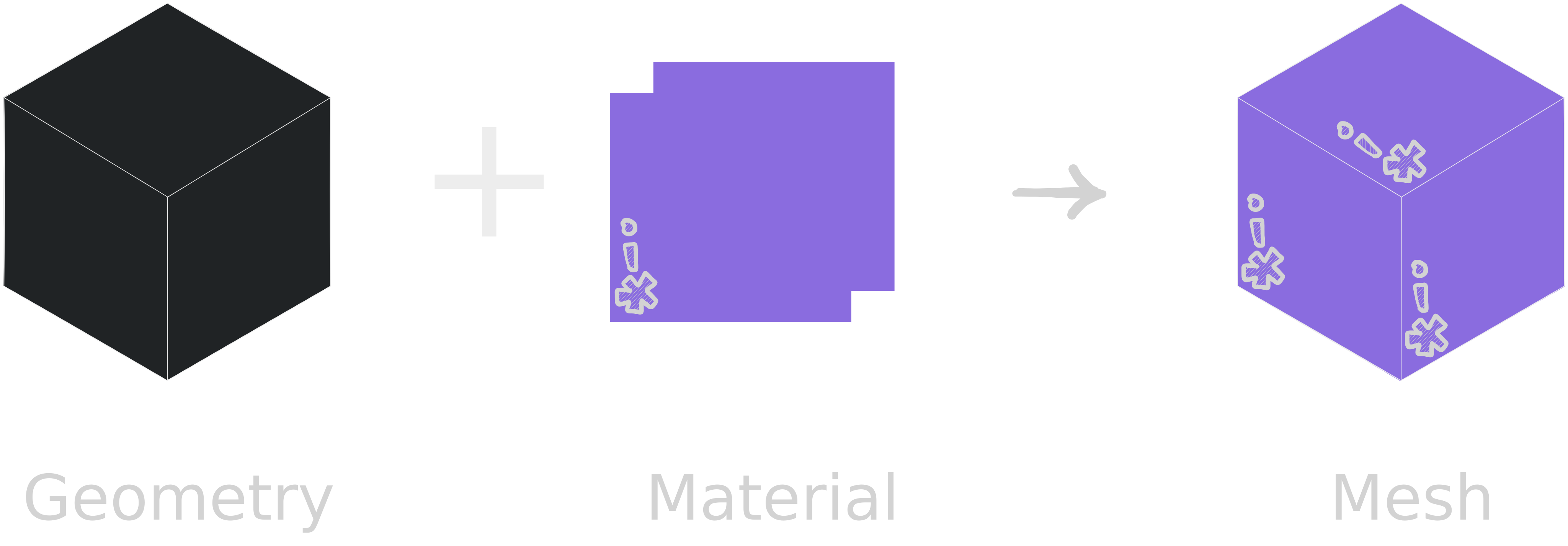
With these concepts in place, it’s time to build an adorable 3D monster.
Scene Creation
Create a new React app. You can use Vite or any other build tool. Then, install Three.js and React Three Fiber as dependencies.
# Create app
npm create vite@latest 3d-monster -- --template react

cd 3d-monster

# Install dependencies
npm install three @react-three/fiber

# Start development server
npm run dev
Remove the boilerplate code. Inside the src folder, create a components directory and add a file named Monster.jsx inside it. Then, in App.jsx, import the Canvas component and place it inside the div with the id canvas-container.
Canvas is where the scene will be rendered. It sets up a scene and a camera, and renders the scene every frame eliminating the need for a traditional render-loop.
import { Canvas } from '@react-three/fiber';
import './App.css';

const App = () => {
  return (
    <div id="canvas-container">
      <Canvas></Canvas>
    </div>
  );
};

export default App;
You won’t see anything in the browser yet because the canvas is transparent by default. However, you can inspect it using the Developer Tools or give it a background color with CSS to make it visible. You’ll notice the canvas doesn’t occupy the full height of the webpage.
Canvas in R3F is responsive to fit the parent node so it takes the height and width of its parent container. To make canvas fill the entire height, set canvas-container div to 100vh. You can remove the default margin on the document body as well.
/* App.css */
* {
  margin: 0;
  padding: 0;
  box-sizing: border-box;
}

#canvas-container {
  height: 100vh;
  background-color: #1b1b1b;
}
From the sketch of the monster below, you can see that it’s made up of circles and triangles. In 3D, that translates to spheres and cones.
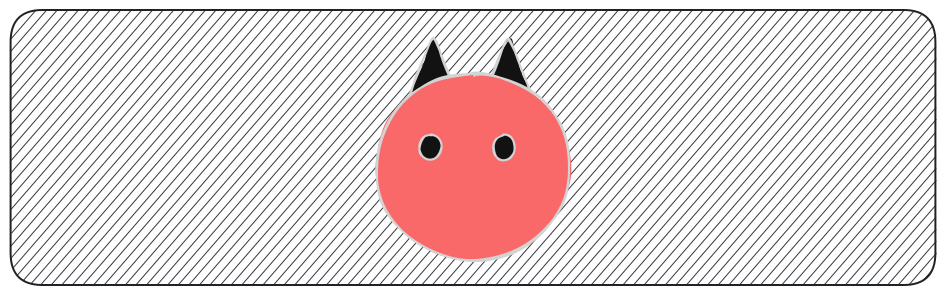
Spheres and cones are 3D objects and if you think about it, any 3D object is a combination of two things: shape or geometry and material. If you remember from the previous section, that’s exactly what a mesh is.
To create a 3D object, wrap the geometry and material components inside <mesh />.
<mesh>
  <boxGeometry />
  <meshBasicMaterial />
</mesh>
boxGeometry and meshBasicMaterial are just two of the many available built-in geometries and materials. You can also create custom geometry and material.
These components map to the Three.js classes that you can create instances of.
For example, <boxGeometry /> maps to BoxGeometry and <meshBasicMaterial /> maps to MeshBasicMaterial in Three.js. According to the R3F docs,
The general rule is that Fiber components are available under the camel-case version of their name in three.js.
You can set properties using props and constructor arguments are always passed as an array via the args prop. Any prop you set on a Fiber component automatically sets the property of the same name on the corresponding Three.js instance.
The code below in React Three Fiber is equivalent to the following code in Three.js:
// A mesh in React Three fiber
<mesh>
  <boxGeometry args={[1, 1, 1]} />
  <meshBasicMaterial color={0xff0000}/>
</mesh>
// A mesh in Three.js
const geometry = new THREE.BoxGeometry(1, 1, 1);
const material = new THREE.MeshBasicMaterial({ color: 0xff0000 });
const mesh = new THREE.Mesh(geometry, material);I won’t go into the details of every geometry, material, or any other component to keep things brief. Keep the Three.js documentation handy so you can refer to it whenever you want to learn more about the components used.
That said, it’s time to bring that monster from 2D to 3D.
To represent the body, use <sphereGeometry /> with the args prop set to an array of three values: radius, widthSegments, and heightSegments Use the <meshStandardMaterial /> with the color prop set to "red".
The widthSegments and heightSegments determine how finely the sphere is subdivided. Higher values produce a smoother-looking sphere by increasing the number of triangles.
// Monster.jsx
const Sphere = () => {
  return (
    <mesh>
      <sphereGeometry args={[2, 64, 32]} />
      <meshStandardMaterial color="red" />
    </mesh>
  );
};

export const Monster = () => {
  return <Sphere />;
};
Next, import the Monster component into App.jsx and include it inside <Canvas /> in the App component.
const App = () => {
  return (
    <div id="canvas-container">
      <Canvas>
        <Monster />
      </Canvas>
    </div>
  );
};
In the browser you can now see a…black sphere?
Huh, strange! The color prop is set to red.
What’s missing?
Think about how you see objects in the real world. What makes it possible to see objects?
Light! You need a source of light for the objects to become visible. The light needs to hit the objects and reflect back to your eyes for you to see them.
There are many types of lights you can use, but for now, let’s add <ambientLight /> with the intensity={0.65}. This light evenly illuminates all objects in the scene.
<Canvas>
  <ambientLight intensity={0.65} />
  <Monster />
</Canvas>
You should now see a red sphere rendered in the browser.
Note some materials like <meshBasicMaterial /> are not affected by light.
Try switching the material to <meshBasicMaterial /> and remove the light source.
By accepting args and color as props, the Sphere component can be used to represent eyes as well. Similarly, you can represent horns using a <coneGeometry />.
const Sphere = ({ args, color }) => {
  return (
    <mesh>
      <sphereGeometry args={args} />
      <meshStandardMaterial color={color} />
    </mesh>
  );
};

const Cone = ({ args, color }) => {
  return (
    <mesh>
      <coneGeometry args={args} />
      <meshStandardMaterial color={color} />
    </mesh>
  );
};

export const Monster = () => {
  return (
    <>
      <Sphere args={[2, 64, 32]} color="red" />
      <Sphere args={[0.1]} color="black" />
      <Sphere args={[0.1]} color="black" />
      <Cone args={[1.2, 5]} color="black" />
      <Cone args={[1.2, 5]} color="black" />
    </>
  );
};
Things still don’t look right. That’s because everything is rendered at the default position i.e. (0, 0, 0). To arrange the objects, use the position prop on each <mesh />.
Move them around, adjust the values until the final arrangement matches the monster sketch.
To enhance the scene, add one more light source called spotLight and also set the roughness prop to give the eyes and horns a glossy, mirror-like finish.
Since <Sphere /> and <Cone /> differ only in their geometry and share the same implementation otherwise, you can refactor them into a single reusable component.
// Monster.jsx
const Object = ({ geometry, args, color, position = [0, 0, 0], roughness = 1 }) => {
  return (
    <mesh position={position}>
      {geometry === "sphere" && <sphereGeometry args={args} />}
      {geometry === "cone" && <coneGeometry args={args} />}
      <meshStandardMaterial color={color} roughness={roughness} />
    </mesh>
  );
};

export const Monster = () => {
  return (
    <>
      <Object geometry="sphere" args={[2, 64, 32]} color="red" />
      <Object geometry="sphere" args={[0.1]} color="black" position={[0.4, 0.2, 3]} roughness={0} />
      <Object geometry="sphere" args={[0.1]} color="black" position={[-0.4, 0.2, 3]} roughness={0} />
      <Object geometry="cone" args={[1.2, 5]} color="black" position={[2, 2, -3]} roughness={0} />
      <Object geometry="cone" args={[1.2, 5]} color="black" position={[-2, 2, -3]} roughness={0} />
    </>
  );
};
// App.jsx
const App = () => {
return (
<div id="canvas-container">
<Canvas>
<ambientLight intensity={0.65} />
<spotLight position={[60, 60, 30]} />
<Monster />
</Canvas>
</div>
);
};The scene looks good but no one would know that it’s an arrangement of individual 3D shapes. The rendered view represents the scene from the camera’s point of view. The view on the screen is exactly what the camera sees and it can be changed by controlling the camera.
However, React Three Fiber doesn’t include built-in camera controls for interactively inspecting a scene.
That’s where Drei, a growing collection of useful helpers and abstractions for R3F comes in.
Drei provides OrbitControls, a camera controller that allows to orbit, zoom and pan around the scene. Add <OrbitControls /> inside <Canvas /> and use the maxDistance prop to limit how far the camera can zoom out.
<Canvas>
  <OrbitControls maxDistance={5} />
</Canvas>
To bring more life to the scene, let’s add one last thing: <Environment />, another helper provided by Drei. It uses a pre-generated HDR environment map, a 360-degree image that captures the lighting information from the real world or a virtual environment. This map is used to create realistic reflections and lighting effects on objects in the scene. It can also serve as the scene background.
Use any of the available presets and add the background prop to apply it as the scene’s background.
<Canvas>
  <ambientLight intensity={0.65} />
  <spotLight position={[60, 60, 30]} />
  <Monster />
  <OrbitControls maxDistance={5} />
  <Environment preset="night" background />
</Canvas>That’s a glimpse of React Three Fiber. Try building something different; change the shapes, add more lights, experiment with materials. I would love to see your creations. Feel free to tag me on Twitter or LinkedIn.
‘Til then ( ̄︶ ̄)↗